

Новое поступление

7mm Endoscope Camera Flexible IP67 Waterproof Micro USB 6 LED Endoscopic Inspection for Android | Безопасность и защита
368,91 руб.

Камера для поиска рыбы подводная рыболовная камера с кабелем 15 м и цветным
9 850,47 - 11 917,00 руб.

Скоростная купольная IP-камера видеонаблюдения 4K 8 Мп HD POE провод P2P ИК видение
US $119.25 - 149.25

1000TVL 23-мм объектив промышленный эндоскоп 20 м канализационных труб сливной трубы
31 304,12 руб.

T3225 ПАНОРАМНАЯ IP - КАМЕРА ВИДЕОНАБЛЮДЕНИЯ WI-FI ЛАМПА | Безопасность и защита
2 100,00 руб.

Камера-Эндоскоп 7 дюймов HD 1080P водонепроницаемая до 20 м с клавиатурой и цифровым
54 418,66 руб.

IP-камера Amorvue 960P Wi-Fi 360 градусов с функцией ночного видения | Безопасность и защита
Характеристики
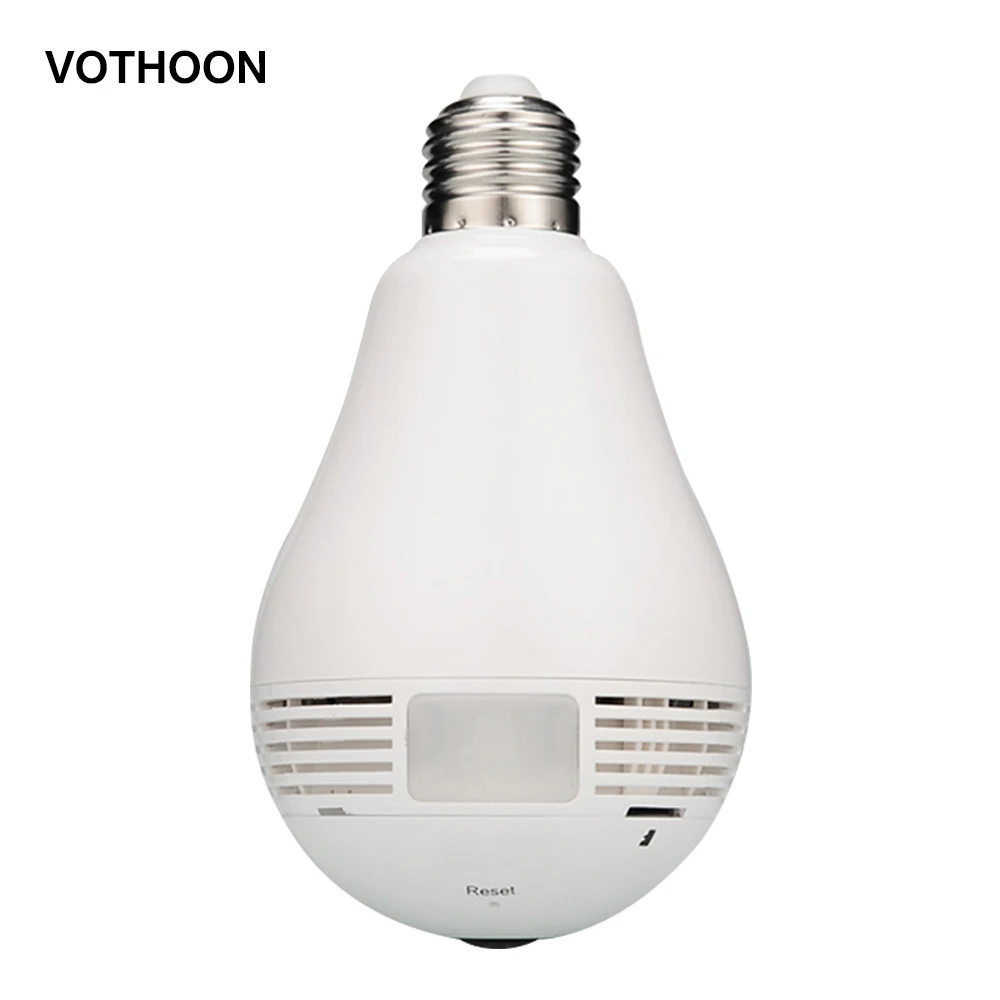
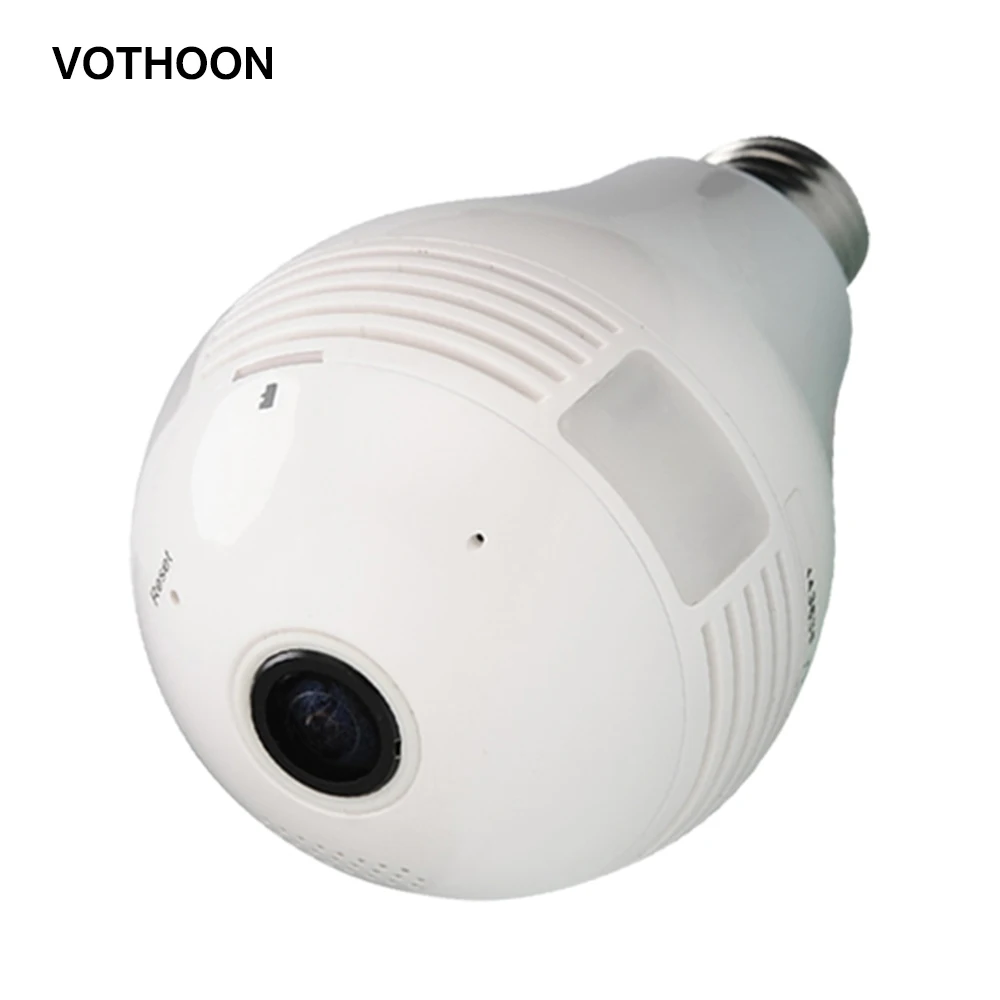
VOTHOON Bulb Light Wireless IP Camera Wi-fi FishEye 960P 360 degree Mini VR 2.0MP Home Security WiFi Panoramic | Безопасность и
История изменения цены
*Текущая стоимость уже могла изменится. Что бы узнать актуальную цену и проверить наличие товара, нажмите "Добавить в корзину"
| Месяц | Минимальная цена | Макс. стоимость | Цена |
|---|---|---|---|
| Mar-19-2026 | 0.31 руб. | 0.97 руб. | 0 руб. |
| Feb-19-2026 | 0.78 руб. | 0.45 руб. | 0 руб. |
| Jan-19-2026 | 0.82 руб. | 0.68 руб. | 0 руб. |
| Dec-19-2025 | 0.94 руб. | 0.73 руб. | 0 руб. |
| Nov-19-2025 | 0.45 руб. | 0.13 руб. | 0 руб. |
| Oct-19-2025 | 0.47 руб. | 0.76 руб. | 0 руб. |
| Sep-19-2025 | 0.76 руб. | 0.62 руб. | 0 руб. |
| Aug-19-2025 | 0.18 руб. | 0.72 руб. | 0 руб. |
| Jul-19-2025 | 0.66 руб. | 0.49 руб. | 0 руб. |
Описание товара
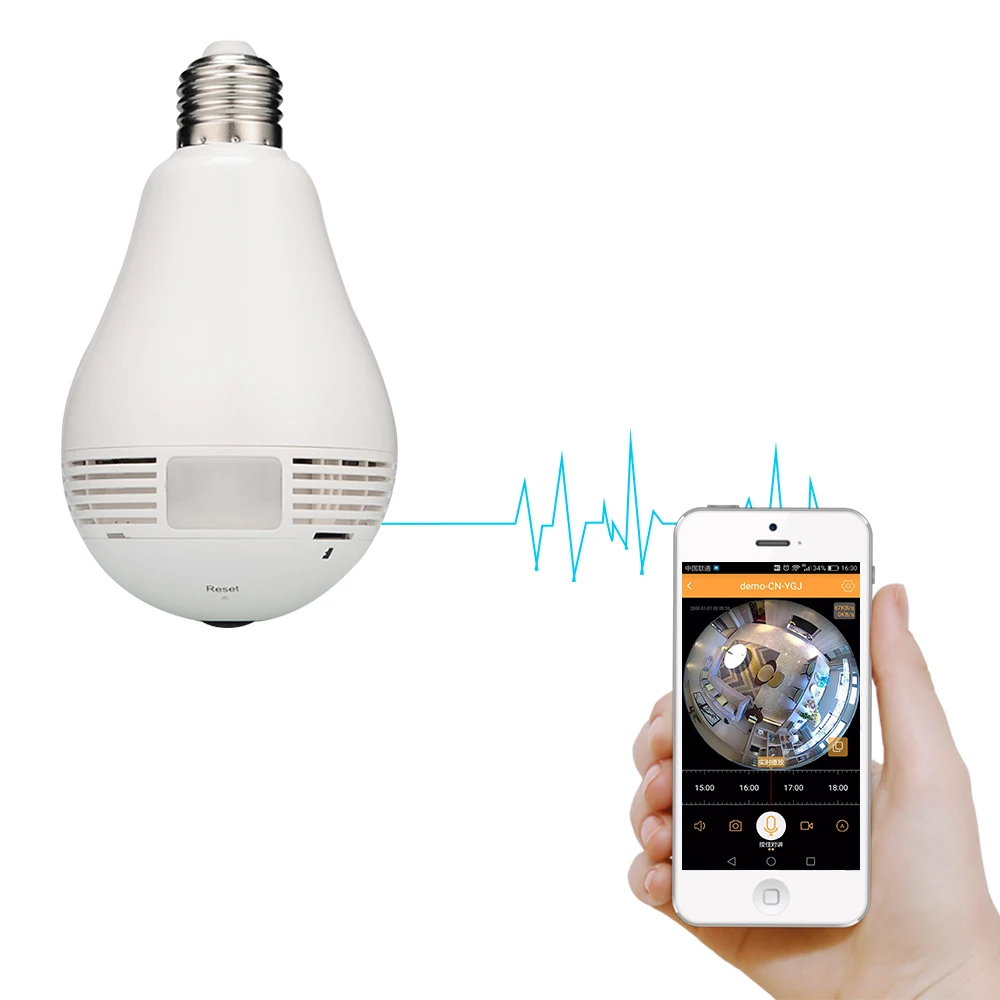
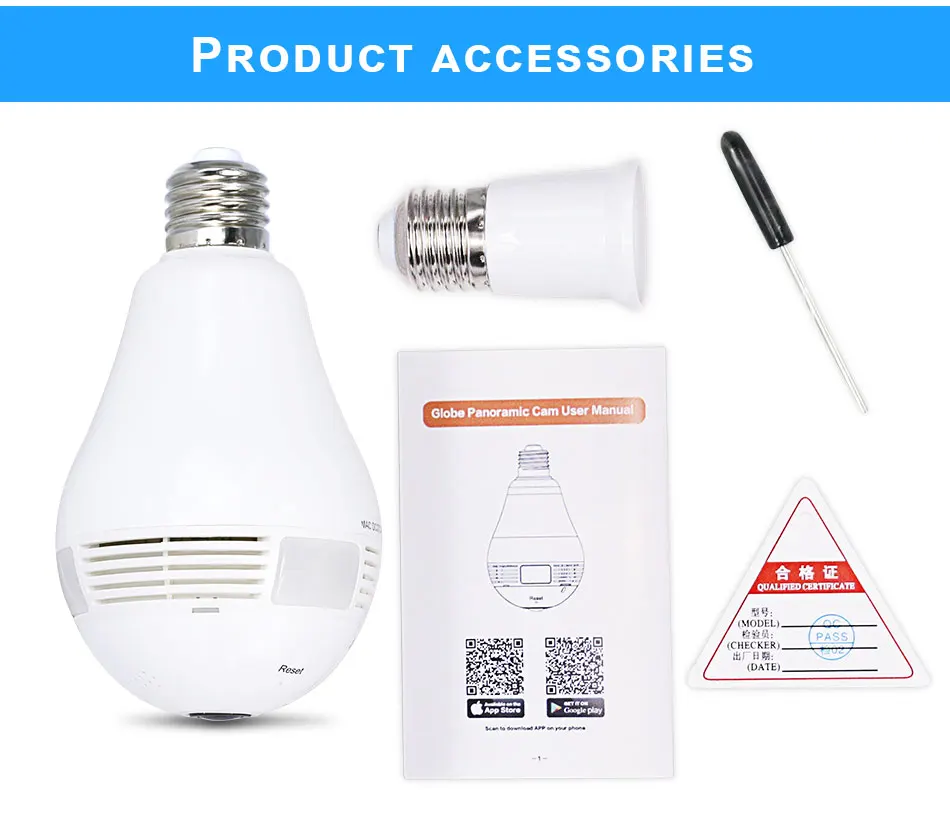
Bulb Light Wireless IP Camera Wi-fi FishEye 960P 360 degree Full View Mini CCTV Camera 2.0MP Home Security WiFi Camera Panoramic
1. 360 degrees panoramic view;
2. Support Motion detection;
3. Advanced e-PTZ on split video.
4. Simultaneous multi H.264 streams support;
5. iPhone and Android apps available for remote viewing;
6. Free Max.25CH client software;
7. Plug & Play smart access without IP setting via routers;
8. Support paging browsing, automatic round tour
9. Support digital zoom on preview & playback;
10. Very easy for operation & installation.
TIP
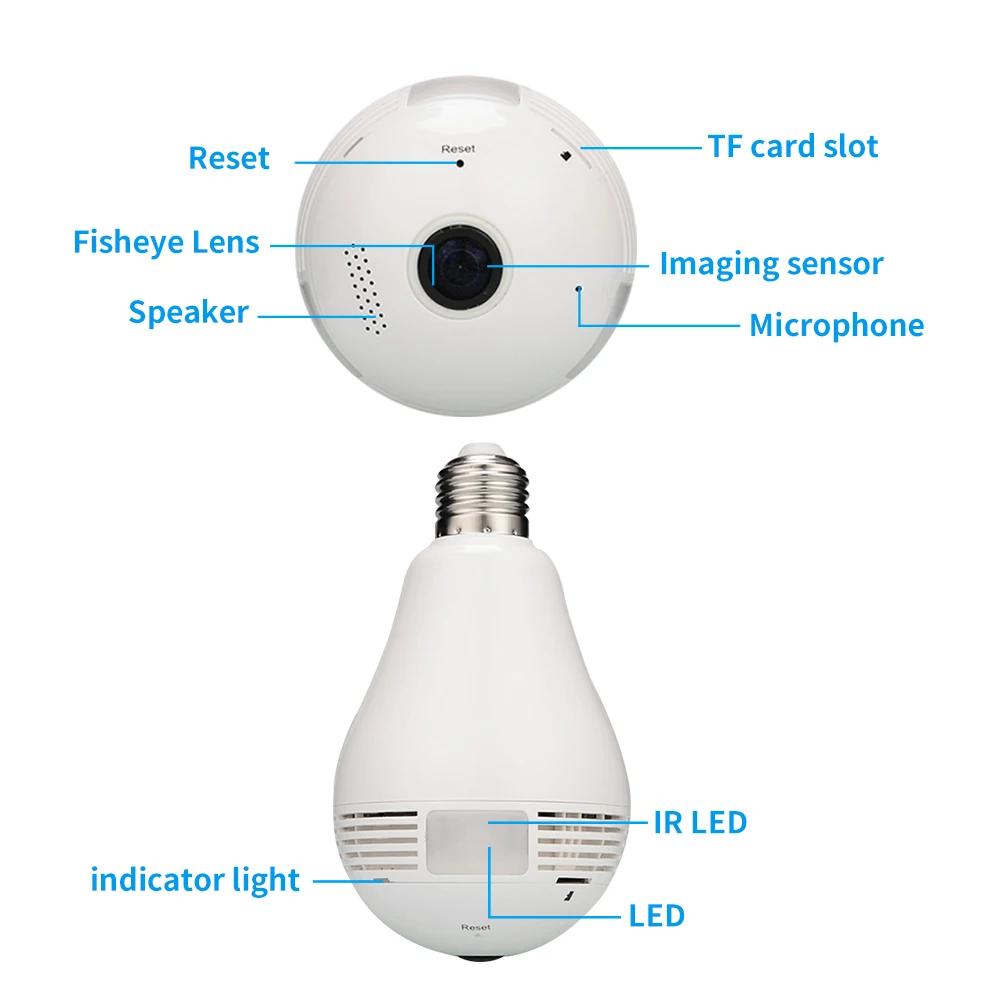
This camera provide Two-way audio function .and support 128Gb MAX to record .


FAQ:
How To Setup
1. Download and Install the App a. Make sure your mobile devices are connected to the network properly (Wi-Fi); b .For Android phone users, download the free app by searching "netcam" in "Google Play Store", scanning the QR-Code on the c. For iPhone or iPad users, download the free app by searching "netcam" in "App Store" or scanning the QR-Code on the package. 2. Connect the IP Camera a. Install the Wi-Fi antenna. Twist the antenna tightly and point it upwards;(For built-in antenna devices or integrated devices, please skip these steps). b. Plug in the power adapter of the IP camera; c. Connect the router (Working Frequency: 2.4GHz,make sure DHCP of the router is on). Insert one end of the Ethernet cable into the router and the other end into the Ethernet port of the IP camera, please wait for about one minute while the cameras is connecting to the router automatically(For devices without Ethernet port, please skip these steps). Cannot Connect To WIFI Please make sure the WIFI Password is correct. Please make sure the router signal is stable (place IP Camera close to your router for first connection is Recommended). The Camera will not work on a 5Ghz wireless standard at this time. If you have a dual-band router, be sure to segregate your wireless channels and connect the Camera to the 2.4ghz channel. Reset Check The IP Camera: please make sure the IP Camera send Waiting for connection message after the plug. If not, we need to reset the Camera. Why Reset: reset is used to boost the IP Camera system, which become more efficient to accept the unknown router and connect it. Reset will erase all user settings including WIFI information, access password, alarm information, arming zones information. The Steps: find the reset hole at the bottom of the device, and then use needle to insert it, press it more more than three seconds after hearing "di" sound, when hearing 'Reset to be defaulted setting' sound, reset successfully. After the reset, user can start to connect it by WIFI.


Смотрите так же другие товары: